

- Sign In button
- Recently Viewed products
- Saved From Cart items
- Saved Items grid
Manage Your Wishlist
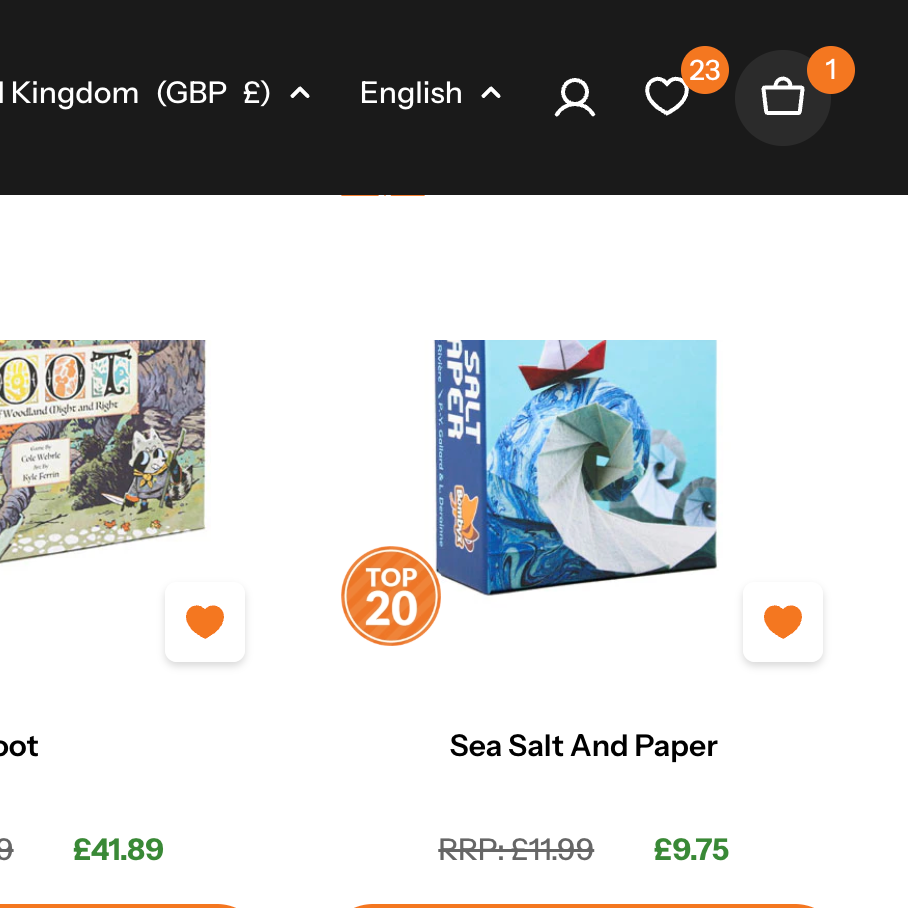
Wishlisting a product
1. Tap the heart icon
Find any product on a collection page or a product page and click the heart icon on the product card.
2. The heart fills — item saved
The heart icon turns solid, confirming the product
has been saved to your wishlist. A small
confirmation bar appears at the bottom of the page.

Step 1
A popup appears — add to a list
Tap the "Add To List" button to open the list selector.

Step 2a
Choose a list to add to
Any lists you've already created appear here. Tap one to select it, then press Save.

Step 2b
Or tap "Create new list"
Don't have a list yet? Tap the + Create new list option.

Step 3
Give your list a name
Type a name in the field — e.g. "Birthday Ideas" or "Living Room" — then tap Save.
Step 4
Select the new list and save
Your new list appears with a tick. Tap Save and the item is added to it. Items saved without choosing a list go into Saved Items.
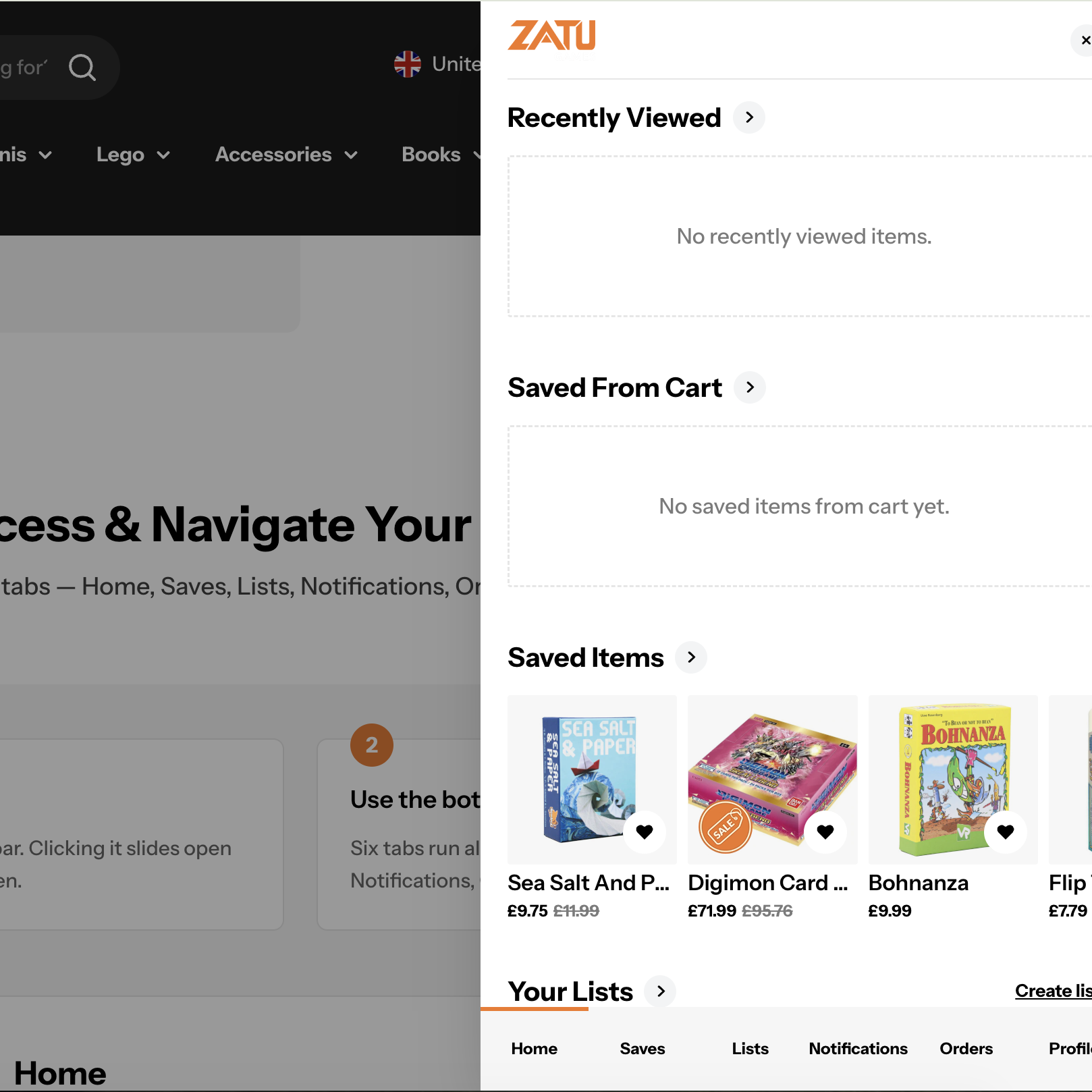
Accessing the Wishlist
Access the wishlist from the heart icon in the header's navigation.
Clicking it slides open the wishlist drawer.
Access & Navigate Your Wishlist
All six tabs — Home, Saves, Lists, Notifications, Orders, and Profile.
1
Click the wishlist icon in the header
The icon is a heart shape in the top navigation bar. Clicking it slides open the wishlist drawer on the right side of the screen.
2
Use the bottom tabs to navigate
Six tabs run along the bottom of the drawer: Home, Saves, Lists, Notifications, Orders, and Profile. The active tab is underlined.
Home
Saves
Lists
Notifications
Orders
Profile
Home
Home
Saves
Lists
Notifications
Orders
Profile
Saves
- Grid of all saved products
- Sale badges displayed on discounted items
Home
Saves
Lists
Notifications
Orders
Profile
Lists
- Named lists with preview collage
- Item count for each list
- + button to create new list
Home
Saves
Lists
Notifications
Orders
Profile
Notifications
- Price drop alerts
- Back in stock notifications
- Low in stock alerts
- Mark all as read link
Home
Saves
Lists
Notifications
Orders
Profile
Orders
- Order history
- Empty state: "No orders found — orders you place will show up here"
Home
Saves
Lists
Notifications
Orders
Profile
Profile
- First name
- Last name
- Email (read-only)
- Birthday
- Addresses
- Marketing consent toggle
- Three notification toggles (Price drop, Back in stock, Low in stock)
- Save button at bottom


